TABLE OF CONTENTS
Factory Reset FAQs
What does a factory reset do?
A factory reset restores your ADTH box to its original software state. This can often resolve software-related issues and does not harm the device.
A reset is not something you need to do regularly, but it is a safe and effective troubleshooting step when the device is not working correctly. In many cases, it can quickly fix problems without needing repair or replacement.
Please note that a factory reset will erase your settings and require some basic setup again.
When should you try a factory reset?
You may want to perform a factory reset if you are experiencing any of the following:
The device is stuck in a restart or boot loop
Software updates fail repeatedly or never complete
The device freezes, crashes, or becomes unresponsive
The remote control works but menus do not respond correctly
Normal rebooting or software updates do not resolve the issue
A factory reset is often a good step to try if the device is not behaving correctly and you want a clean starting point.
What will be erased during a reset?
A factory reset clears device settings only. After the reset, you may need to:
Rescan for TV channels
Reconnect to Wi-Fi
Reconfigure preferences such as audio, captions, or favorites
Your device hardware and firmware remain unchanged.
Which Reset Method Should I Use?
If your TV box can power on and you can operate it normally, please choose the Factory Reset from the user interface.
If your TV box cannot start up properly and is not operable, please use the Factory Reset button method.
Reset through user interface
To reset the device, please:
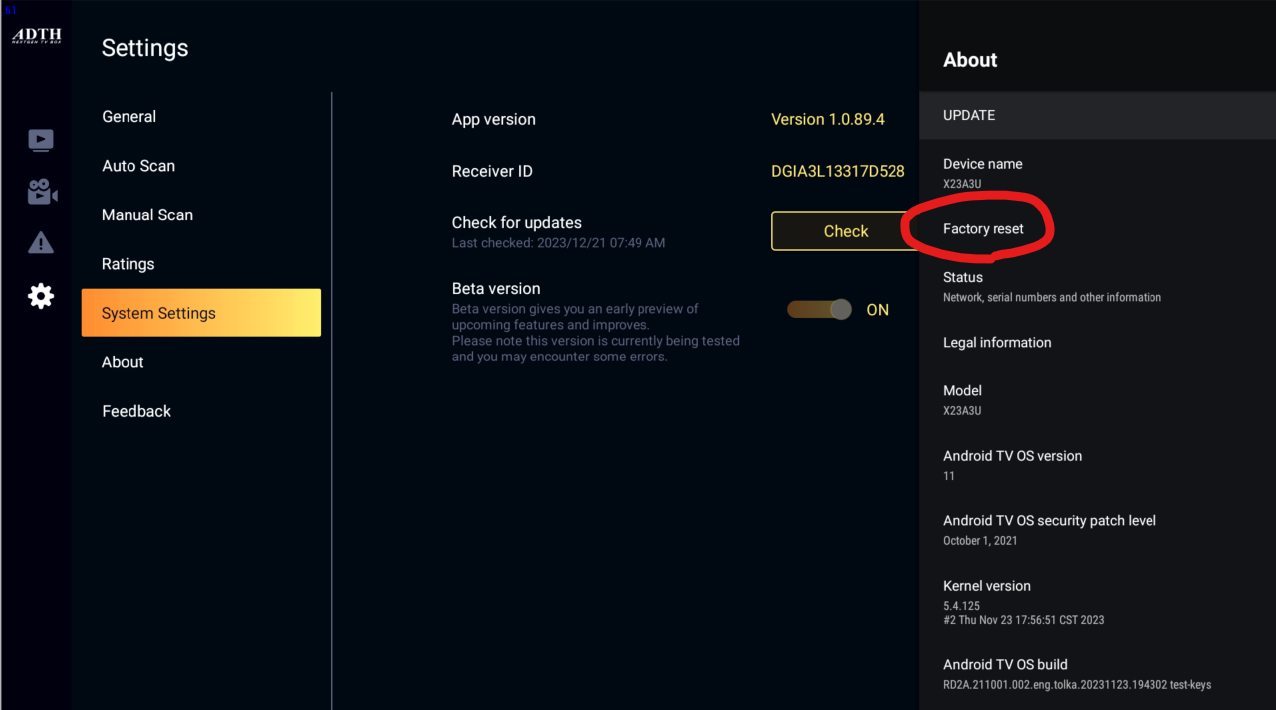
- Go to Settings, then About.
- Select "Factory reset".
If you do not see Factory reset on that page, your software version keeps it in the system settings instead. Go to Settings, then System Settings, then Device Preferences, then About, and select "Factory reset" there.
Reset using the reset button
Here are the steps:
- Unplug the power cable from the TV box.
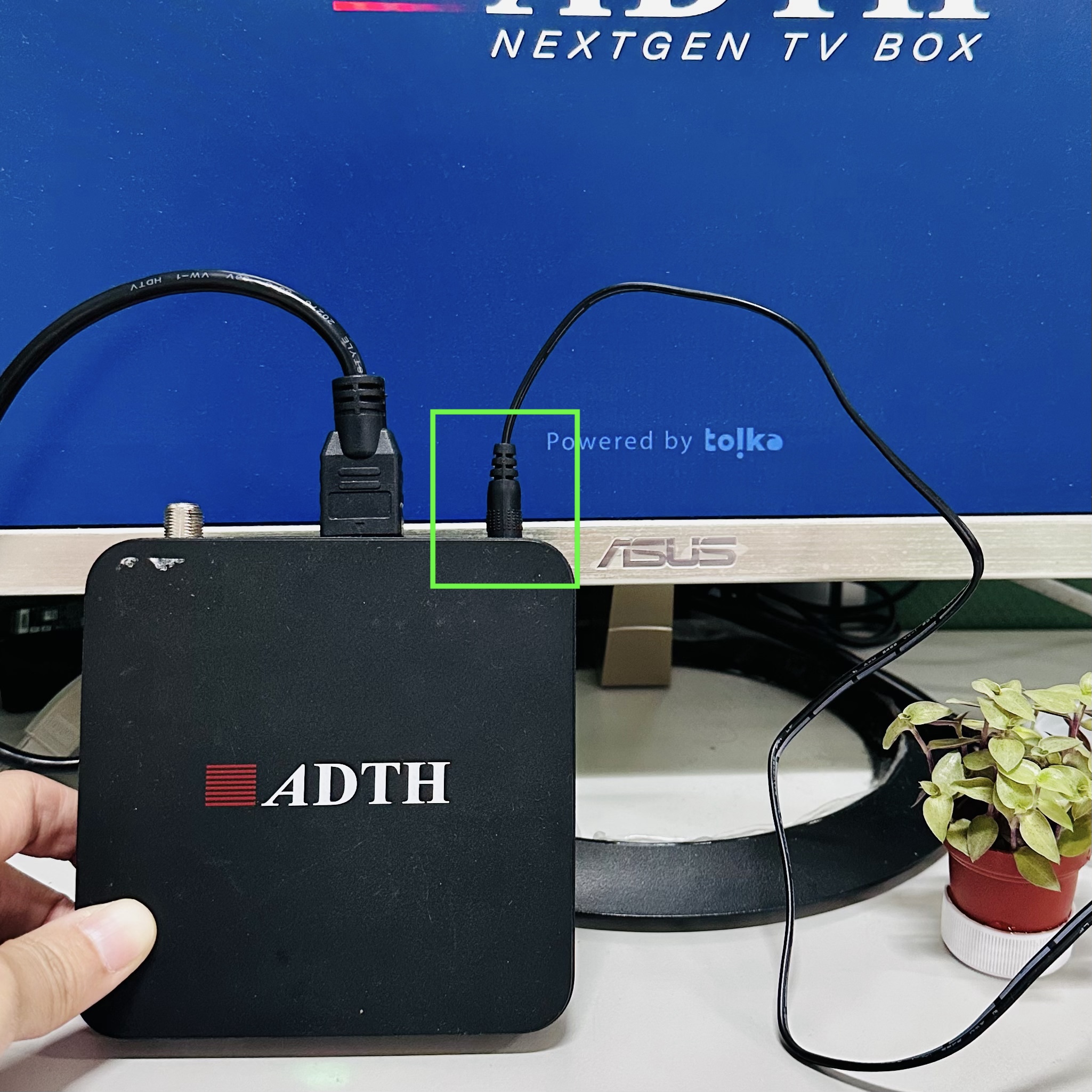
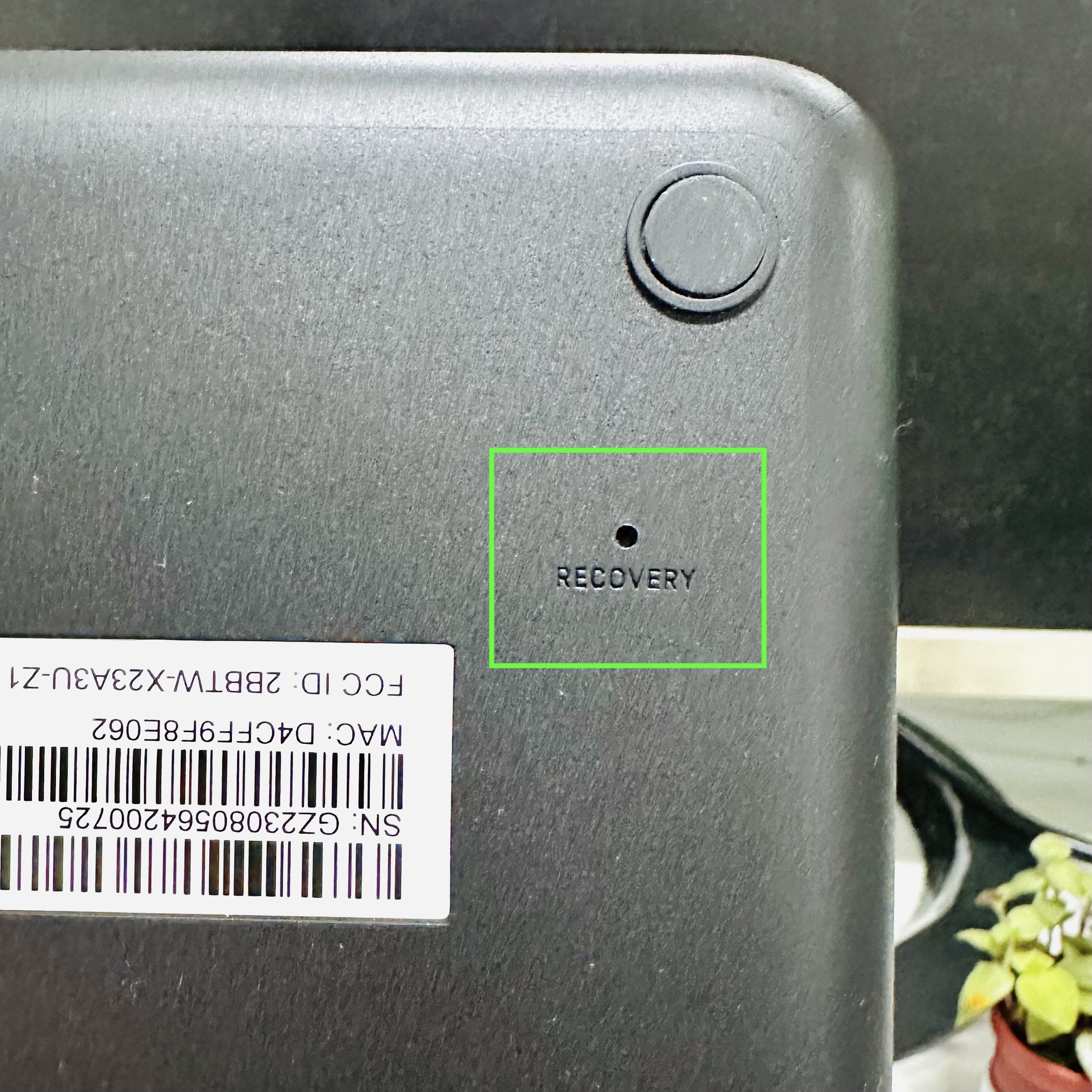
- Turn the box over and locate the small reset hole on the back.
- Find a pin or any thin, pointed object.
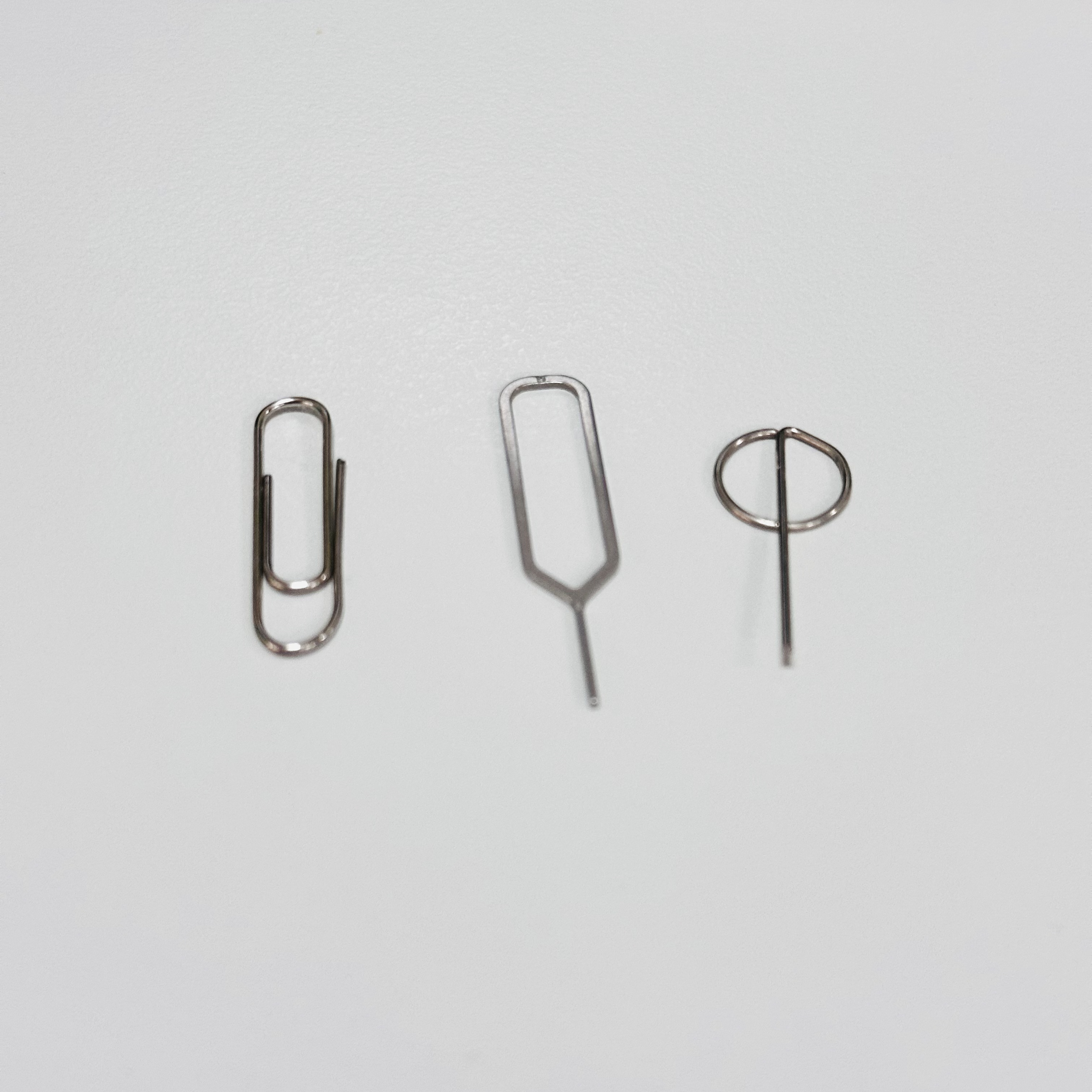
- Insert the pin into the hole and press and hold the reset button inside.
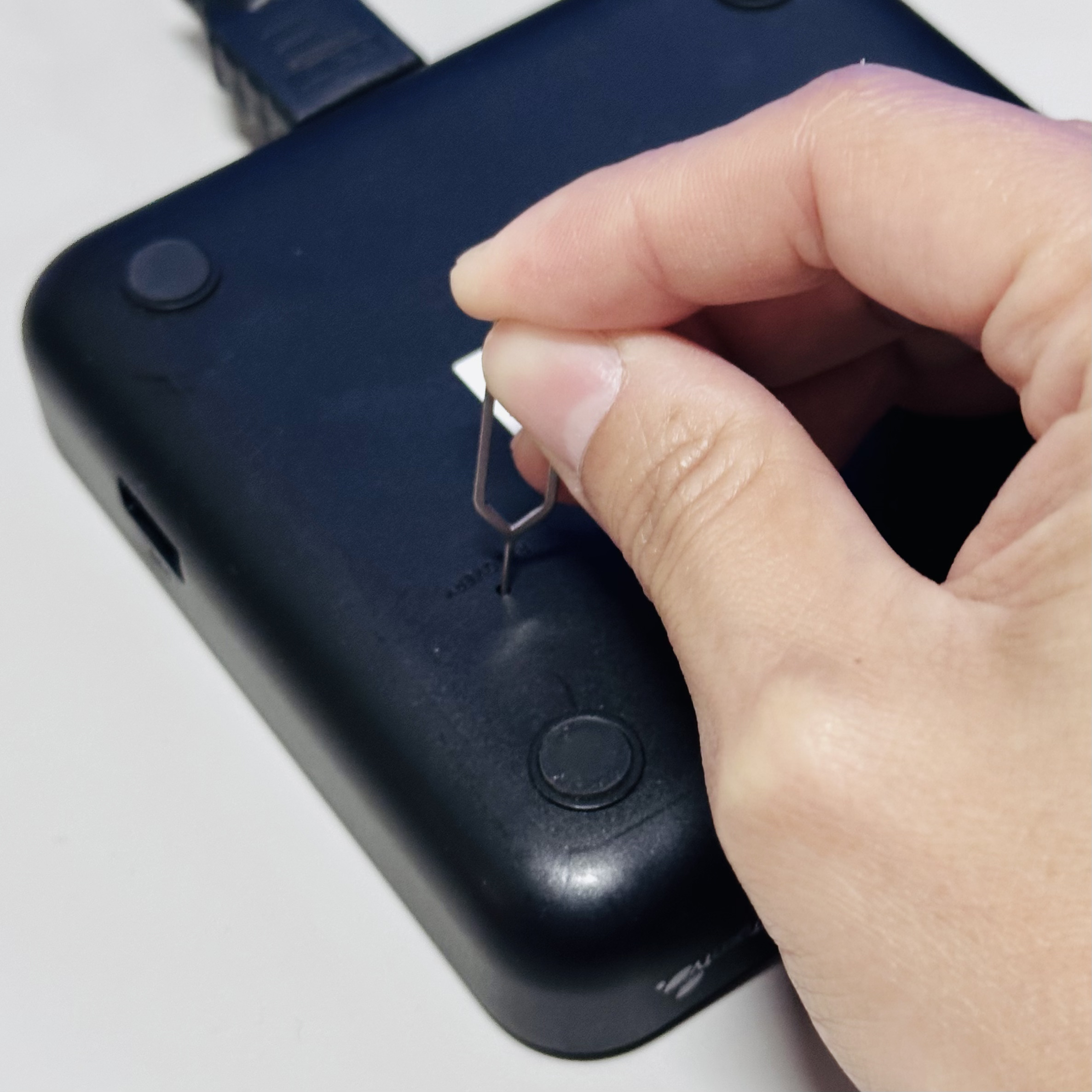
- While holding the pin, plug the power cable back in.
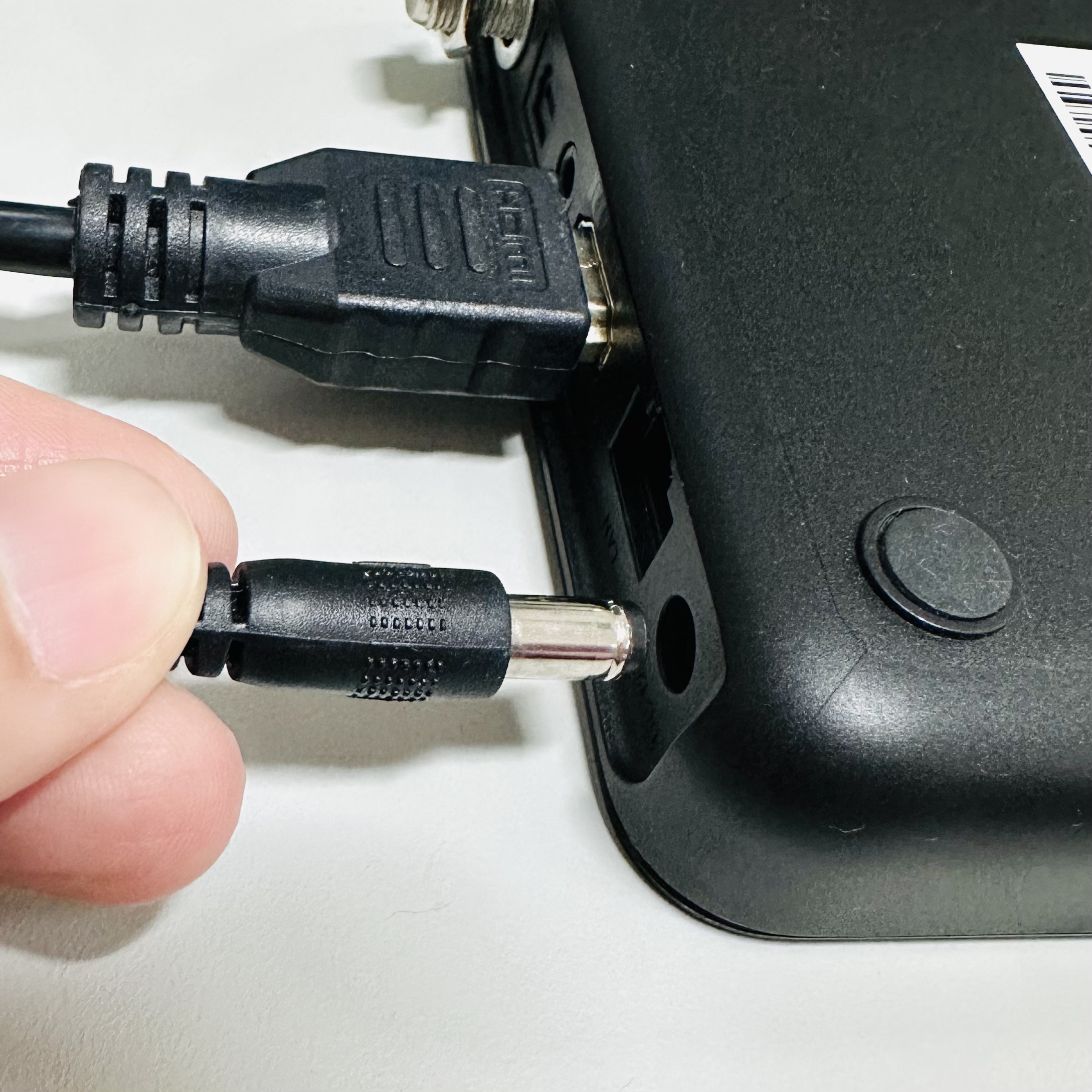
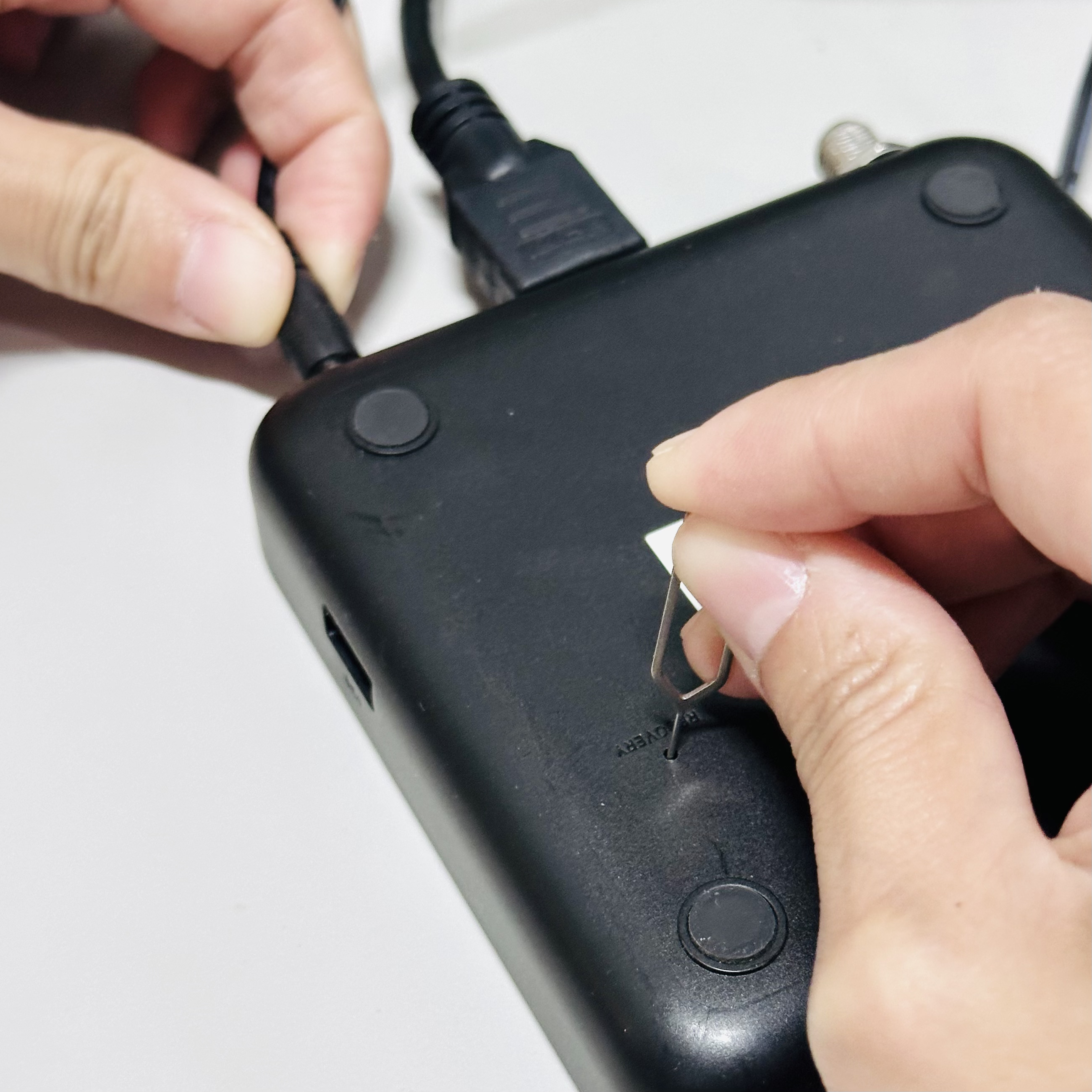
- When the startup screen appears, release the pin. The reset is complete.

- After the device starts, go to Settings > About, and check whether the App version is the latest version.
Last reviewed: 4 August 2026.
Related articles
Was this article helpful?
That’s Great!
Thank you for your feedback
Sorry! We couldn't be helpful
Thank you for your feedback
Feedback sent
We appreciate your effort and will try to fix the article