When to Use This
If some buttons on your remote are not working properly or responding incorrectly, you can re-pair the remote by following the steps below.
Initial Remote Pairing
When using the device for the first time, a remote pairing animation will appear during setup. Please follow the on-screen instructions to pair the remote.
If you accidentally skip the initial pairing process, please follow these steps after the device has powered on:
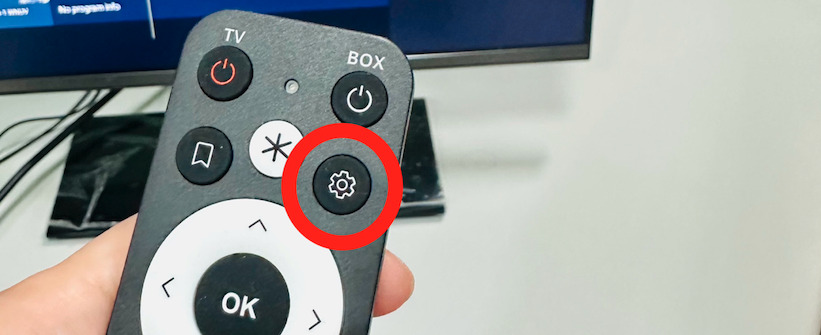
- Press the Settings button on the remote to open the Settings panel on the right side.
- Find Repair Bluetooth Remote (usually the last item in the list).
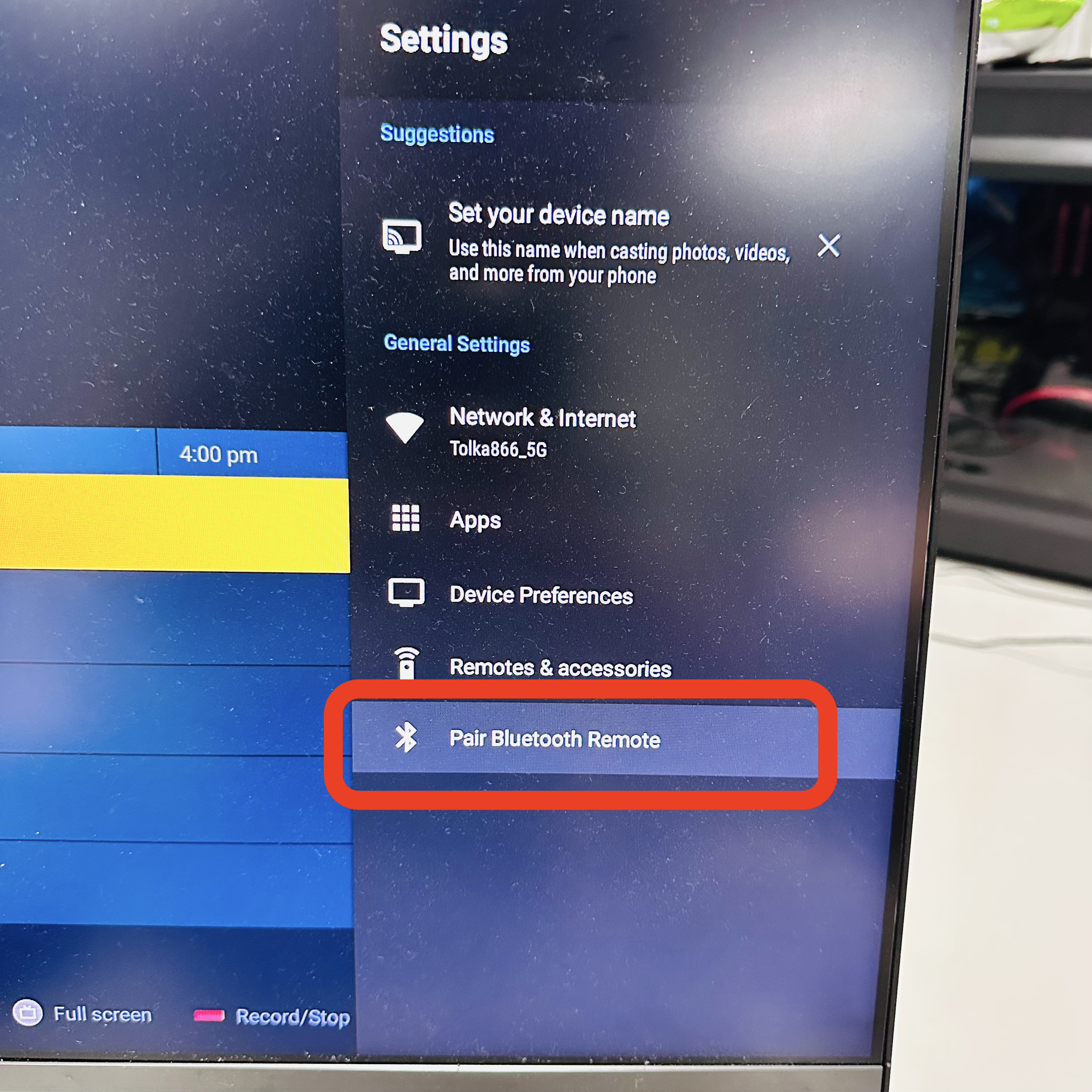
- Select it to start the automatic re-pairing process.
Manual Pairing (If Automatic Pairing Fails)
If the automatic pairing process is unsuccessful, please open Remote & Accessories and follow these steps:
- Check whether the remote is already listed in the paired devices table.
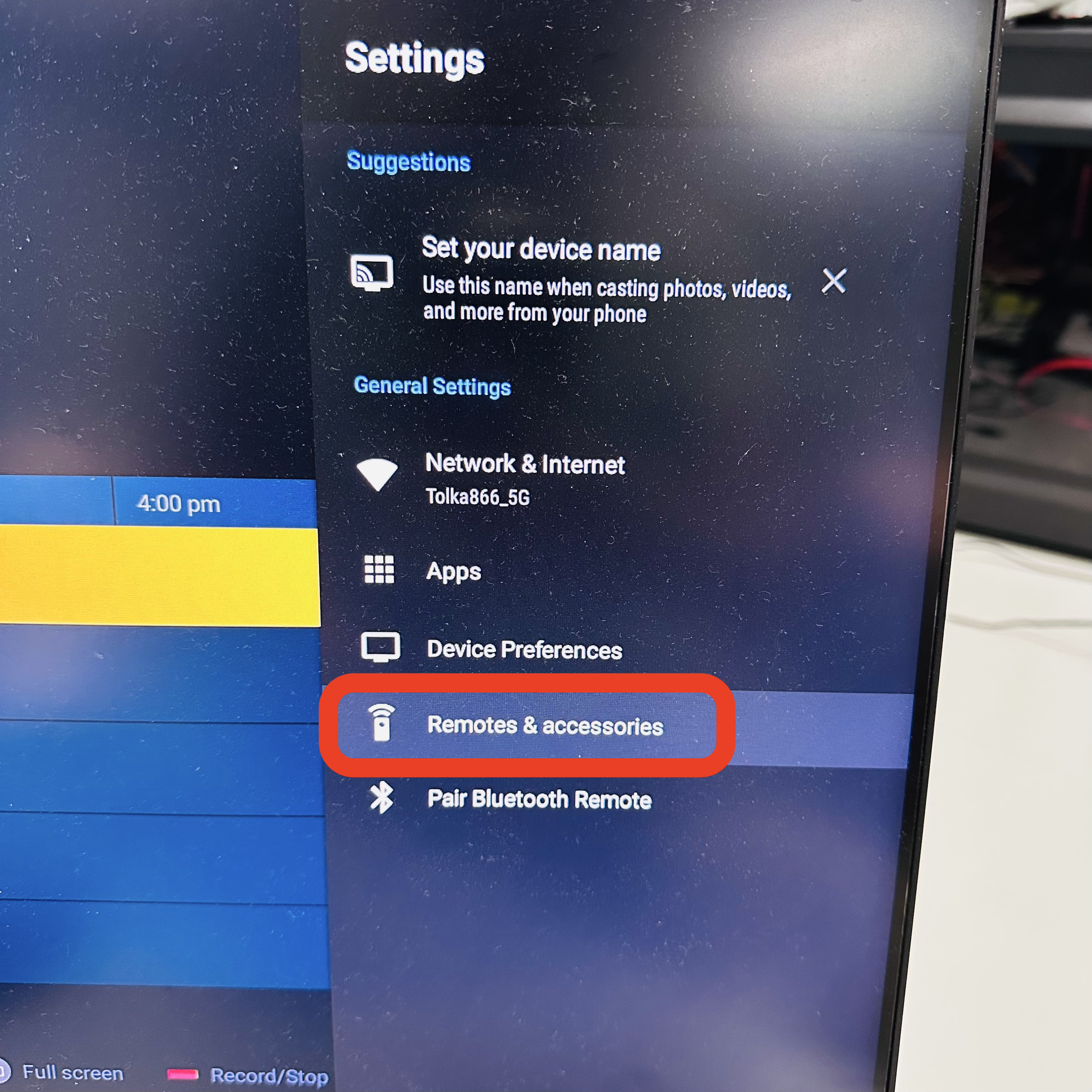
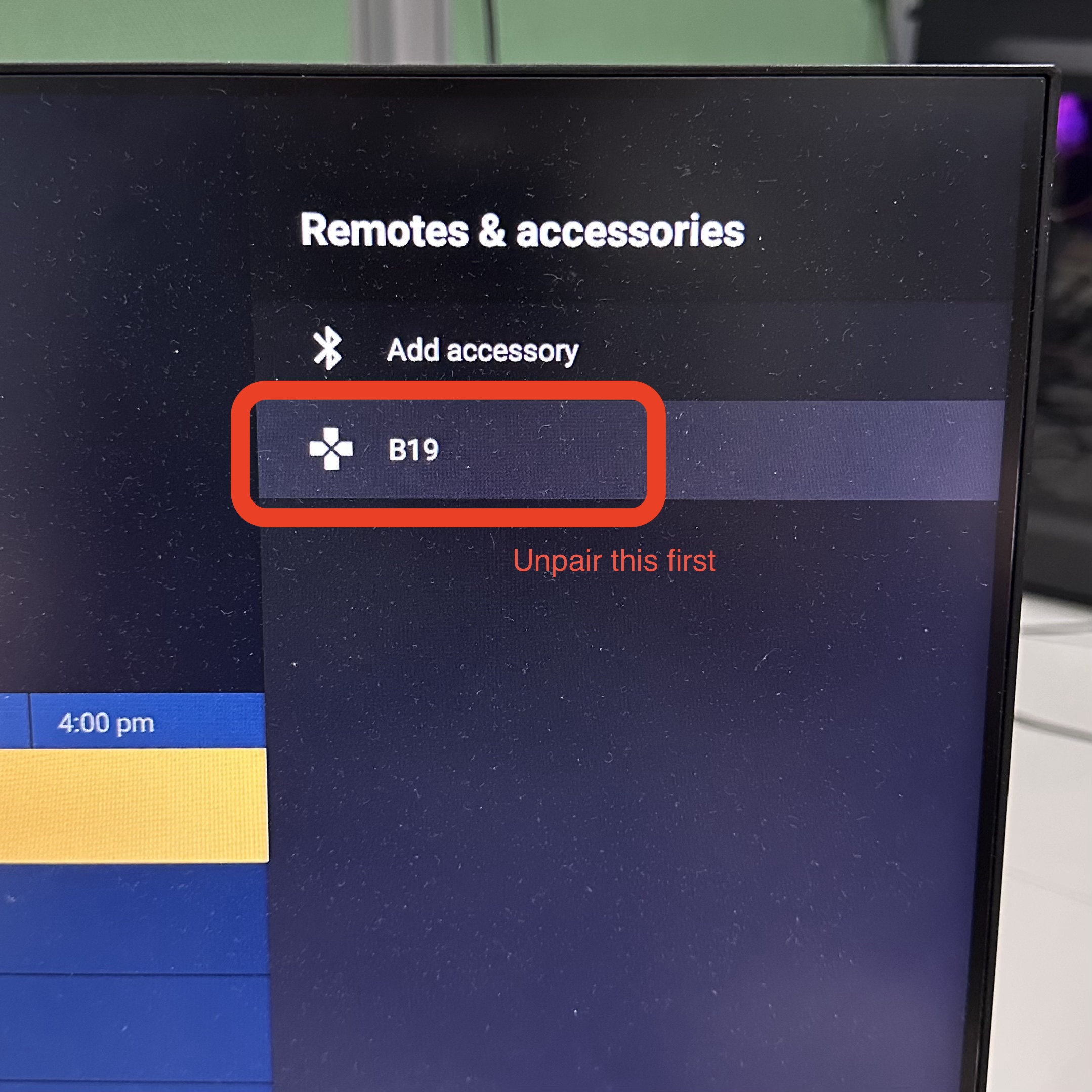 If it is listed, select the remote and choose Unpair: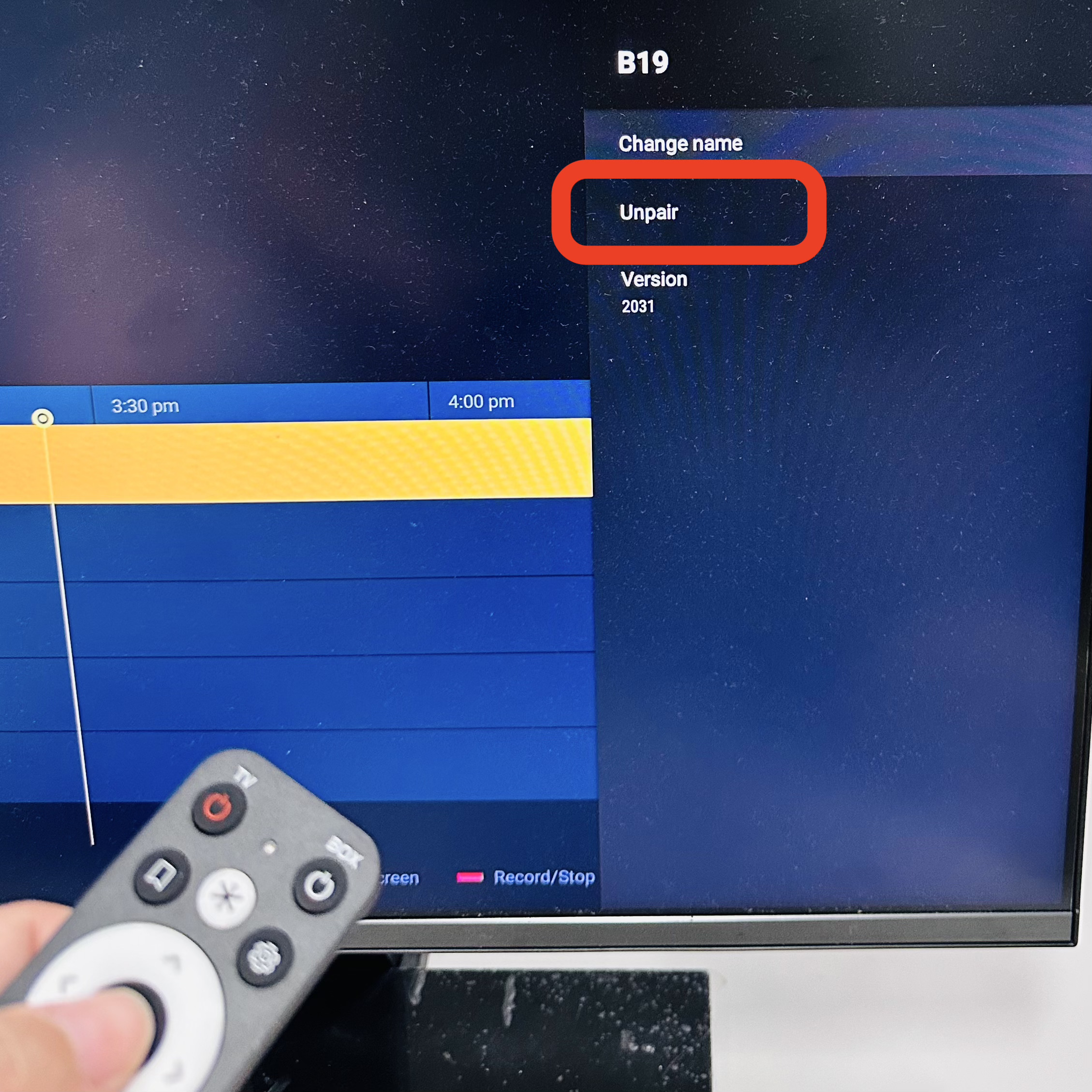
- Select Add Accessory (the first item in the menu).
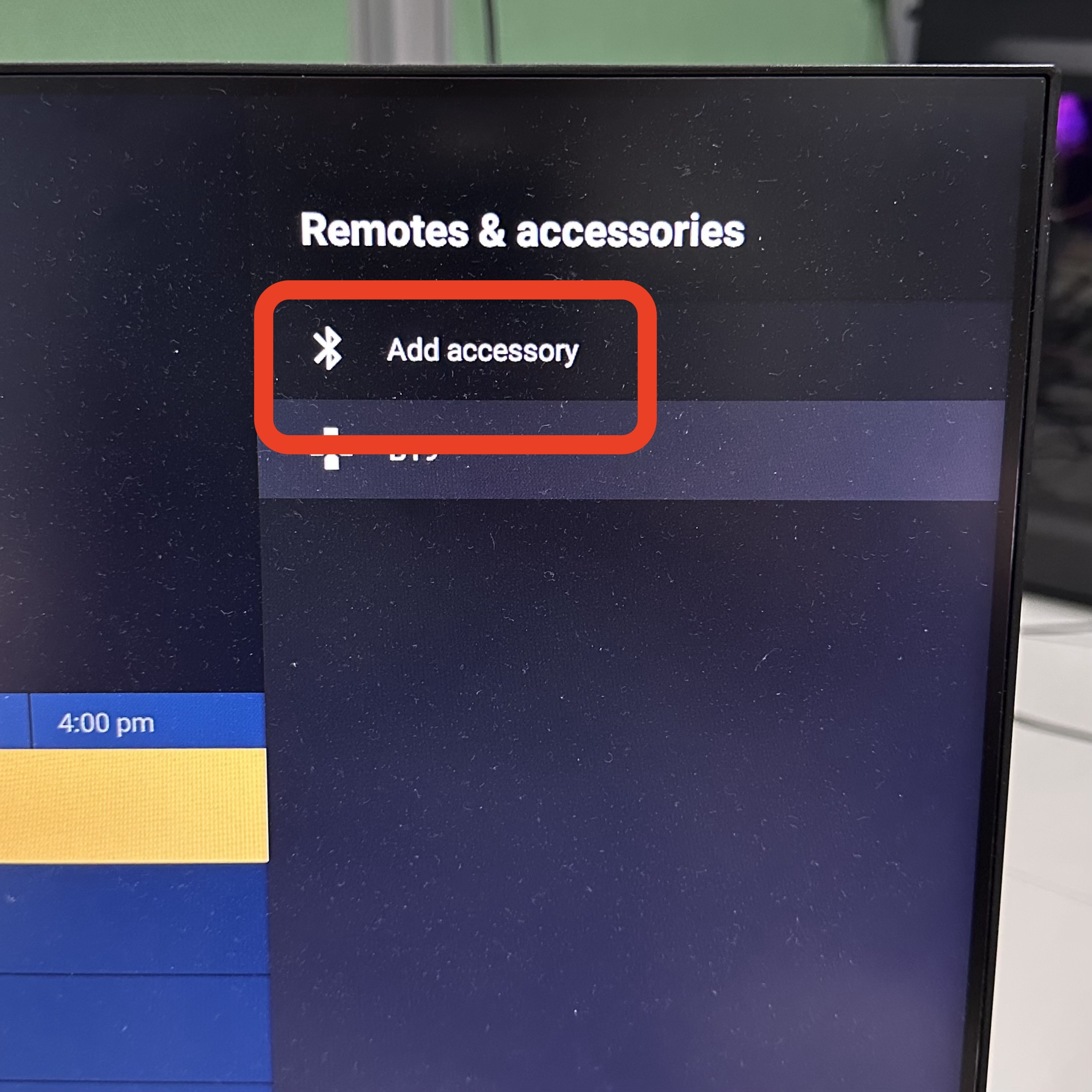
- The Searching for Accessories screen will appear.
- Keep the remote pointed away from the TV box, then press and hold the Back and Home buttons simultaneously until the red LED on the remote starts flashing.
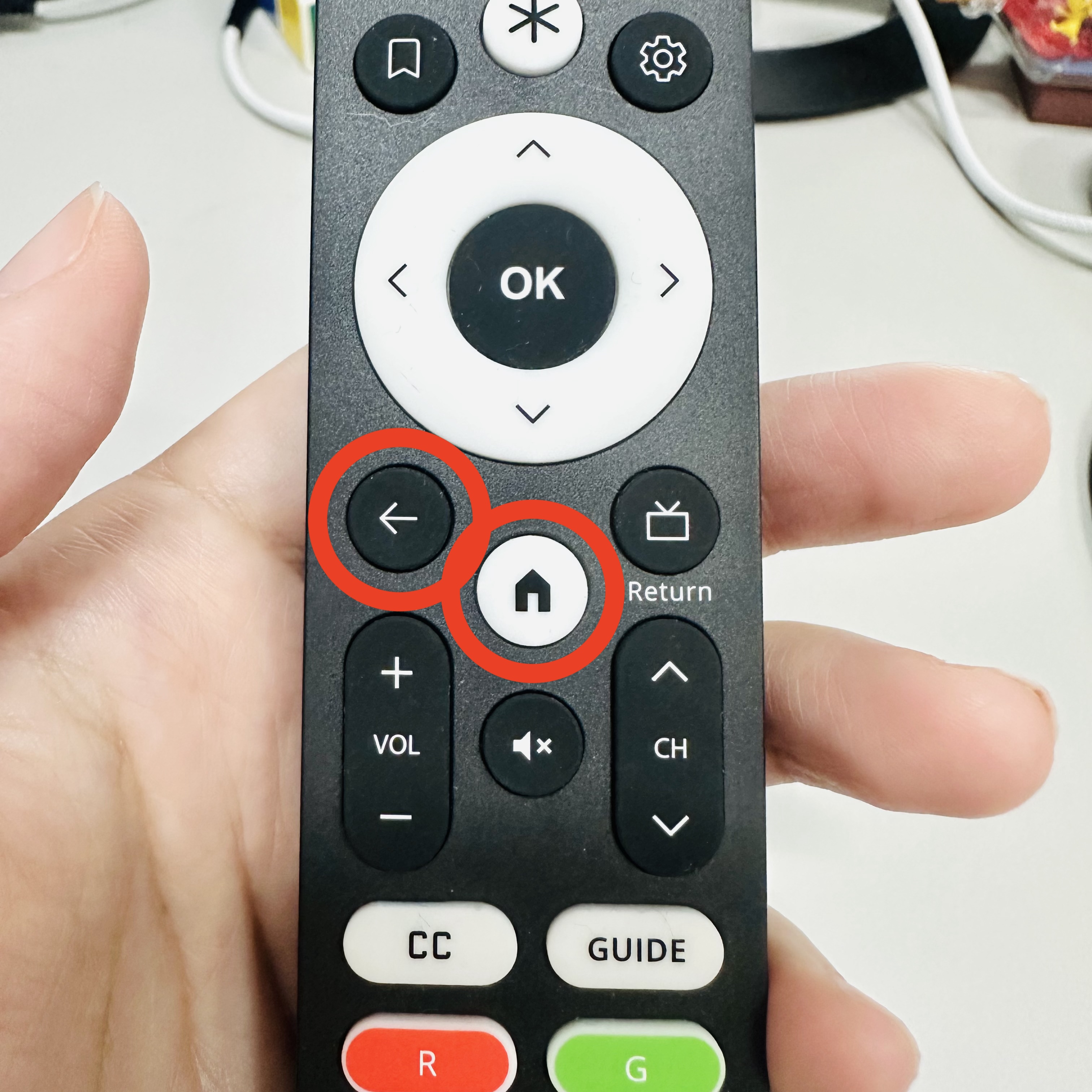
- Once the LED is flashing, point the remote toward the TV box. When the TV box detects the remote, the remote name will appear on the right side of the screen.
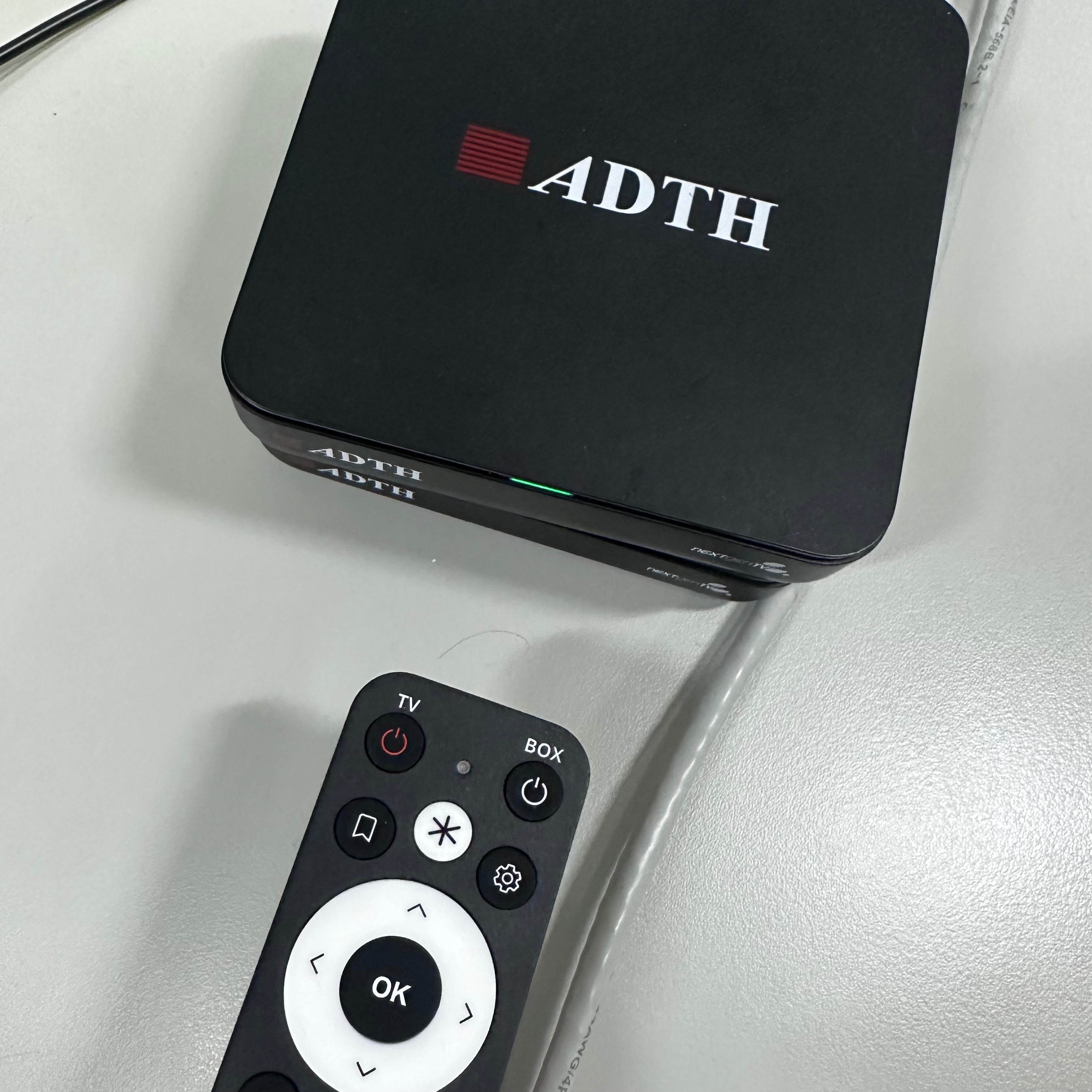
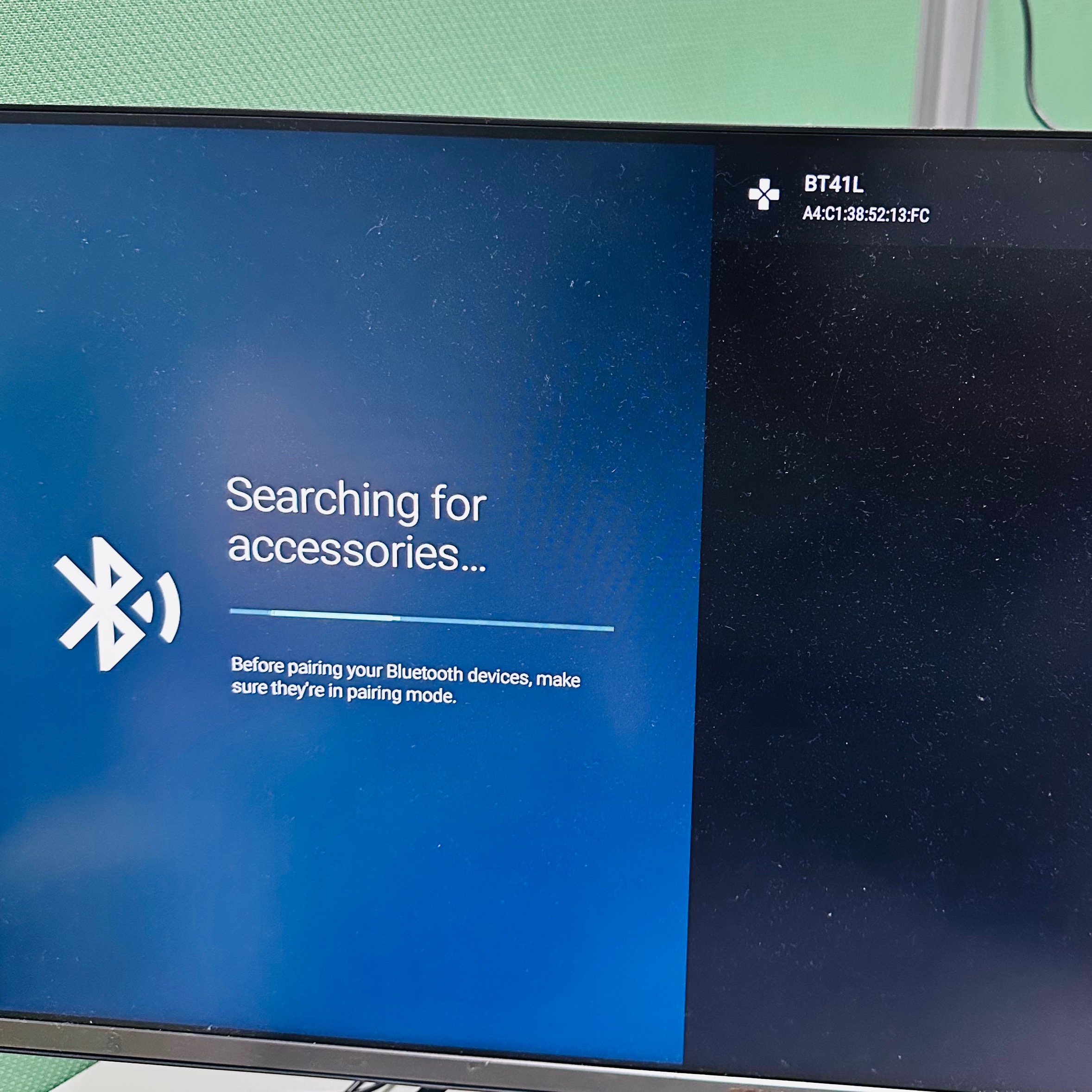
- Select the remote name that appears in the list.
- Wait for the pairing process to complete.
- Verify that the pairing was successful by confirming that the remote appears in the Remote & Accessories device list.
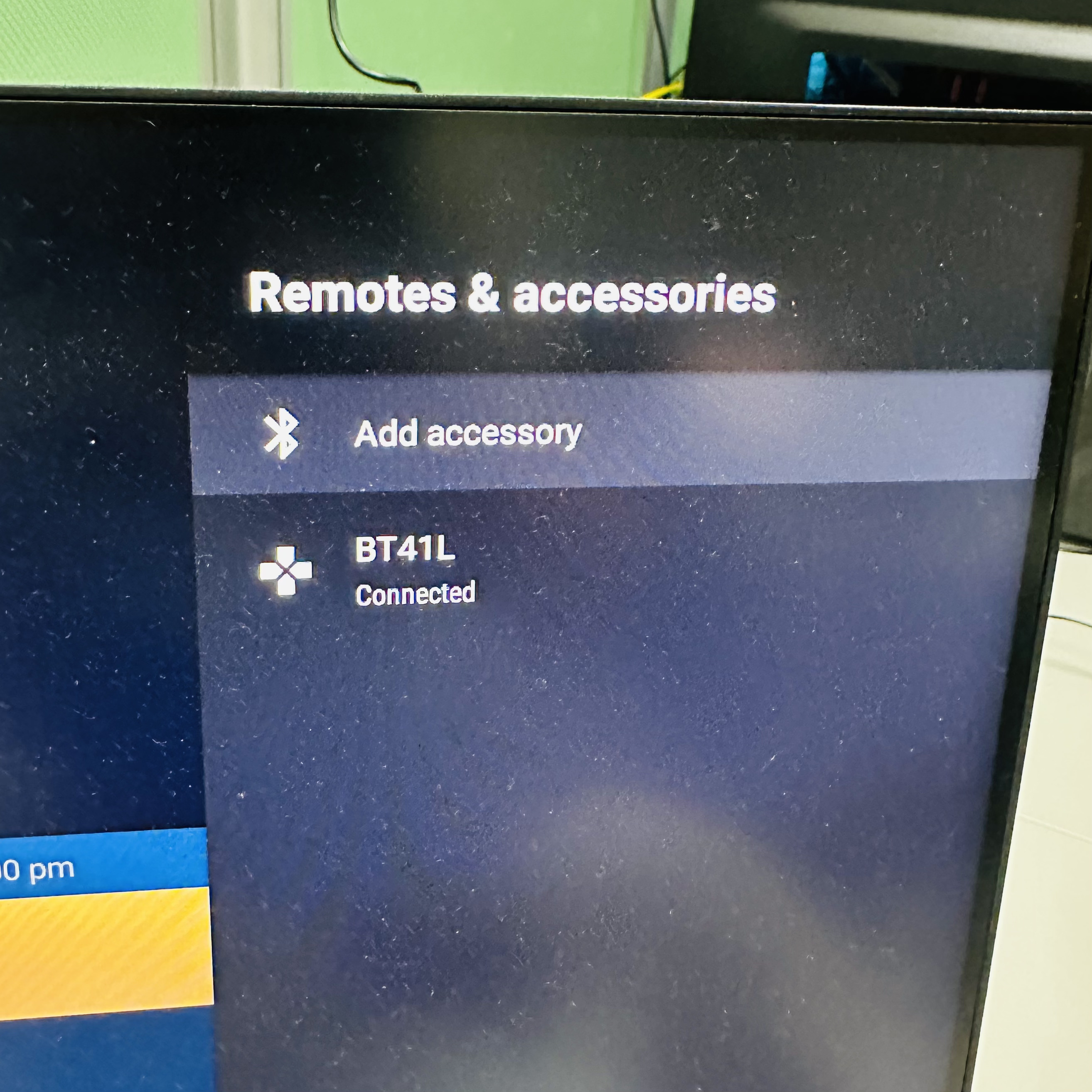
- Test the remote to ensure all buttons and functions are working properly.
Note: If pairing still fails, please repeat the process and make sure the remote is close to the TV box during the detection stage.
Related articles
Was this article helpful?
That’s Great!
Thank you for your feedback
Sorry! We couldn't be helpful
Thank you for your feedback
Feedback sent
We appreciate your effort and will try to fix the article